Librista
Librista is our app that connects to your library card to show you our catalog and you are able to reserve books.
Librista Cheat Sheet
What You'll Need
A smartphone, tablet, or computer,
Your library card number
Next
Go to the App Store
Search Librista
Tap Get/Install
Open the app once it's installed
Setup
Open the app
Type in your whole library card number (letters included) for the username then the last four digits as the password
Next step is to search and browse the collection
Libby
Libby is an app associated with your library where you are able to check out audio books, eBooks, and more all on your handheld devices.
Libby Cheat Sheet
What You'll Need
A smartphone, tablet, computer, or e-reader
Your library card number
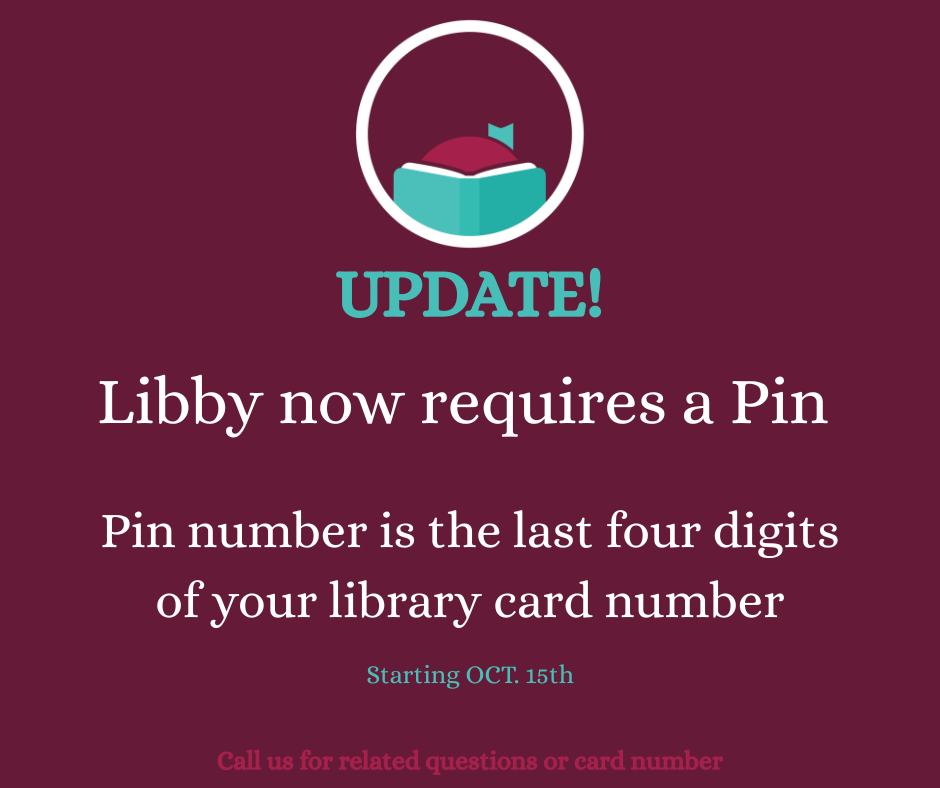
Your password/pin which is the last four digits of your card number
Next
Go to the App Store
Search Libby
Tap Get/Install
Open the app once it's installed
Setup
Open Libby
It'll ask: "Do you have a library card?" → tap Yes
Search for Stewart County Public Library
Enter your library card number (and PIN, if asked)
Tap Sign In
Finding what you want
Browse
Tap the Library icon (house symbol) at the bottom
Scroll through featured titles, or tap Subjects to browse by genre
Search for a specific title
Tap the magnifying glass
Type the book title or author name
Check availability
"Borrow" button = available now
"Place a Hold" = currently checked out by someone else, you'll get notified when it's your turn
Borrowing
Tap the cover or title
Tap Borrow
Tap Borrow! again to confirm
It's now in your Shelf (bookshelf icon at the bottom)
Reading it
Tap Open Book to start reading right in the app
Or tap Read With... to send it to Kindle
Listening to an audiobook
Tap Open Audiobook
Use the play button; adjust narration speed under the settings icon in the player
Placing a Hold
Tap Place a Hold on an unavailable title
Confirm your email — Libby will notify you when it's ready
When notified, you'll usually have 3-5 days to borrow it before it's passed to the next person
Check your hold position anytime under Shelf → Holds
Tip: You can suspend a hold (delay your turn) if you're not ready — tap the hold, then "Manage Hold" → "Suspend."
Reading on a Kindle
Borrow the book in Libby as normal
Tap Open Book
Tap Read With... → Kindle
This sends you to Amazon's site — tap Get Library Book
Make sure your Kindle is connected to Wi-Fi; the book will download automatically
Note: Kindle only supports e-books, not audiobooks, through this method
Managing Your Shelf
Shelf icon at the bottom shows everything you have borrowed and on hold
Loans tab = current borrowed items
Holds tab = items you're waiting on
Tags = you can organize/save books into custom lists without borrowing them yet
Returning early
Tap the book cover on your Shelf → Return Now
(Otherwise, books return themselves automatically when the loan period ends — no late fees!)
Renewing
If no one else has a hold on it, a Renew Loan option appears near the due date
For parents wanting kids to use Libby
You can set content controls by going to Menu > Content Controls (under "Settings") > Audience
Common Problems
Can't find my library - Make sure you're searching the exact library name/system, not just the city
Card number not working - Check for typos, make sure card isn't expired — ask staff to verify
Book won't open - Close and reopen the app; check for app updates
Send to Kindle but not showing up - Make sure Kindle Wi-Fi is on; try "Sync" from the Kindle's home screen
Downloaded book disappeared - It likely expired at the end of the loan period — this is normal
App is asking for PIN and I don't have one - Ask library staff — this can usually be reset or bypassed